
Context
The "Reports" feature allows you to generate detailed and customizable summaries from your activity data.
Widgets
Reports consist of data widgets categorized into major sections.
There are seven categories:
Each of these categories contains various widgets displayed in different formats (tables, texts, bar charts, pie charts, curves, etc.).
When creating your report, you can specify the target of each widget to focus or filter the data.
Example: Apply data widgets only to "Servers" of type "Windows".
Widget Details
Below is a detailed explanation of each available widget by category.
General
This category includes the following data widgets:
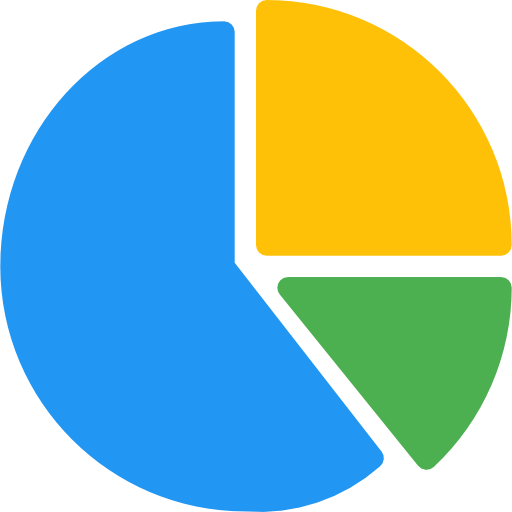 Asset Summary
The asset summary allows you to visualize the distribution of various devices on a diagram, providing insight into its composition.
📋 Windows Update
This widget allows you to view the update statuses of Windows agents in your environment as well as the number of pending updates.
📋 Ongoing Maintenance
This widget enables you to see ongoing maintenance activities for the agents in your environment along with their scheduled completion dates.
Tickets
The term "active ticket" used below refers to an alert ticket that has neither been manually closed (e.g., resolved by a technician), nor automatically closed (returned to normal).
This category includes the following data widgets :
📊 Categorization of active alerts (all periods)
This widget shows the distribution of active tickets according to the 5 most represented categories, providing insight into the most common types of incidents in the system.
📊 Categorization of active alerts
This widget shows the distribution of active tickets created during the reporting period, based on the 5 most represented categories, providing insight into the most common types of incidents during the period.
📋 List of active critical tickets
This widget lists the active tickets created during the period with maximum criticality.
📊 Criticality of active alerts (all periods)
This widget shows the distribution of active tickets based on the 3 existing criticality levels (low, medium, and critical).
📊 Criticality of active alerts
This widget shows the distribution of active tickets created during the reporting period, based on the 3 existing criticality levels (low, medium, and critical).
📊 Ongoing alerts
This widget provides information on both the overall volume of tickets and those created during the reporting period. The graph highlights the distribution of ticket statuses, showing for each date the number of active (to be handled) and inactive (handled) tickets.
📊 Intervention performance
This widget displays ticket volumes from three perspectives:
- Those created during the period (new incidents) that are not yet open (not yet handled).
- Those opened (taken in charge) during the period, regardless of their creation date.
- Those resolved (either manually closed or returned to normal) during the period.
Note: a ticket may belong to several of these categories simultaneously, for example if it was opened and closed during the same period.
Backup
This category focuses on Files & Data and Microsoft 365 products and includes the following data widgets :
Files & Data Activity Statistics
This widget allows you to view the distribution of the different backup statuses for Files & Data in a chart, as well as the total number of backups performed during the period defined in the report.
📋 Microsoft 365 Data (all periods)
This widget allows you to view the total number of users, the number of billed licenses, the volume of data backed up, and the overall success rate of performed backups.
🚥 Backup Activity History (max 30 days)
This widget allows you to view the consolidated daily status of backups performed over a rolling 30-day period. It displays a summary of the total number of backups carried out, along with an overall status including successful, failed, and incomplete backups.
Microsoft 365 Activity Statistics
This widget allows you to view the distribution of the different backup statuses for Microsoft 365 in a chart, as well as the total number of backups performed during the period defined in the report.
Pedigree
This category allows you to provide additional details about the agents included in the report. It includes the following data widgets :
📋📈 Pedigree Agents (Detailed)
This widget allows you to view detailed information for each agent in the report. It includes identity, hardware, and network information, along with graphs for CPU, memory, and disk usage.
Usage tip: this widget is best placed at the end of the report (select it as the last item in the widget order) to avoid unnecessarily lengthening or overloading the PDF. This widget fills a full page per agent and can result in a very long document if used on a node containing a large number of agents.
📋 Pedigree Agents (Summary)
This widget provides a summary list of information for all agents in the report.
Assist
This category summarizes remote control session data and includes the following data widgets:
📋 Connection Summary (all periods)
This widget allows you to view the number of reserved simultaneous connections, the number of users with access to the Assist feature, the total duration of connections, and the average duration of a session.
📈 Connection Summary
This widget allows you to view, over the report period, the total number of connections, the total duration of connections, and the average session duration.
📋 Connections During the Period
This widget allows you to view, over the report period, the list of all connections along with associated information.
App Manager
This category allows you to provide additional details about the agents included in the report. It includes the following data widgets:
Application Status
This widget allows you to view the number of deployed applications (installed status) and the number of failed deployments.
📋 List of Failed Applications
This widget provides a summary list of applications whose deployment has failed.
Cybersecurity
This category includes the following data widgets:
📊 Security Alerts
This widget compares the total number of alerts triggered during the report period with that of the previous period.
📊 BitDefender Deployments
This widget shows the proportion of agents protected by BitDefender out of all eligible agents.
📋 BitDefender Quarantines
This widget provides a summary list of agents currently in quarantine.
📊 Detected Threats
This widget compares the total number of triggered alerts (based on detected viruses) during the report period with that of the previous period.
Antivirus Deployments
This widget shows the proportion of protected agents out of all eligible agents.
Antivirus Deployment Status
This widget allows you to view the antivirus solutions detected on machines in your network.
To learn more about reports, please refer to the following articles: